 Amanda
AMANDA FIELD GUIDE / 01
How to explain a highlighted paragraph in a PDF
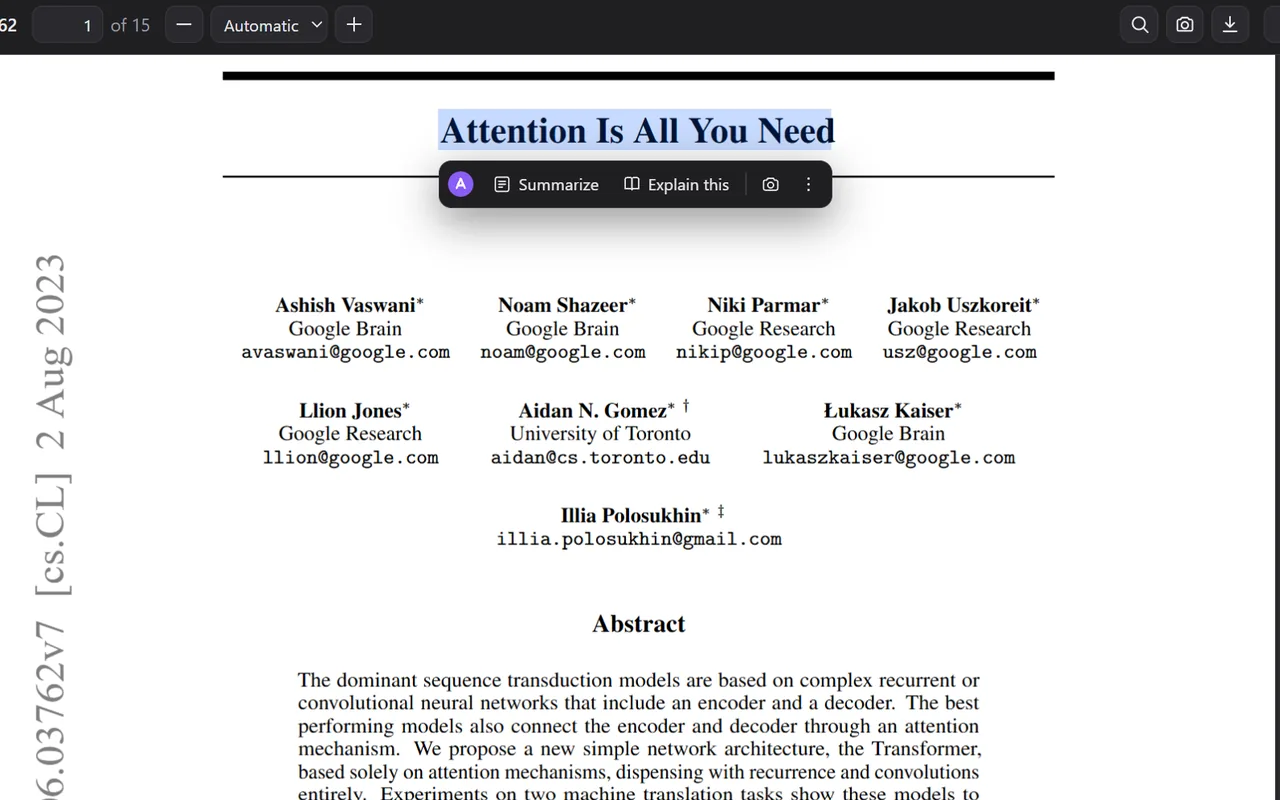
To explain a PDF paragraph with Amanda, open the PDF in Amanda’s reader, highlight the passage, and choose Explain from the action bar or its menu. The response appears beside your selection.
1. Open the PDF in Amanda’s reader
Install Amanda in Chrome, then open a PDF. Amanda uses its own reader because Chrome’s built-in viewer does not expose text selections to extensions. If you disabled Amanda’s reader, enable it in settings first.
For a file saved on your computer, open chrome://extensions, find Amanda, choose Details, and enable Allow access to file URLs.
2. Select one complete idea
Highlight a paragraph that includes the term or claim you want explained. Include a preceding definition if the passage refers to it. Choose Explain; if it is not pinned to the bar, open the ⋮ menu.
3. Ask a more specific follow-up
EXAMPLE FOLLOW-UP PROMPT
Explain this paragraph in plain language. Define the technical terms, then give one simple example. Which details would you need from the rest of the paper?
For an illustrative sentence such as “The estimator is unbiased,” ask whether this means it is correct on every sample. A useful explanation should distinguish an average property from the result for one sample.
If highlighting does not work
A scanned PDF may contain images rather than selectable text. Use Ctrl/⌘ + Shift + U and capture the paragraph instead. Some protected PDFs or site restrictions may prevent Amanda’s reader from loading a file. Do not bypass access restrictions.
Check your understanding
Read the paragraph again and explain it in your own words. Check any definitions or claims against the source. Amanda sees the selection you send, not automatically the full paper.