 Amanda
FOR THE MOMENT A READING GETS DIFFICULT
Stay curious.
Keep your place.
The dense paragraph. The unfamiliar equation. The figure that needs a second look.
Amanda is a Chrome extension for students. Select text on a webpage or PDF to explain, summarize or translate it. Screenshot an equation or figure to ask about it, right where you are reading.
Free plan available · Pro trial on install · No model API key needed
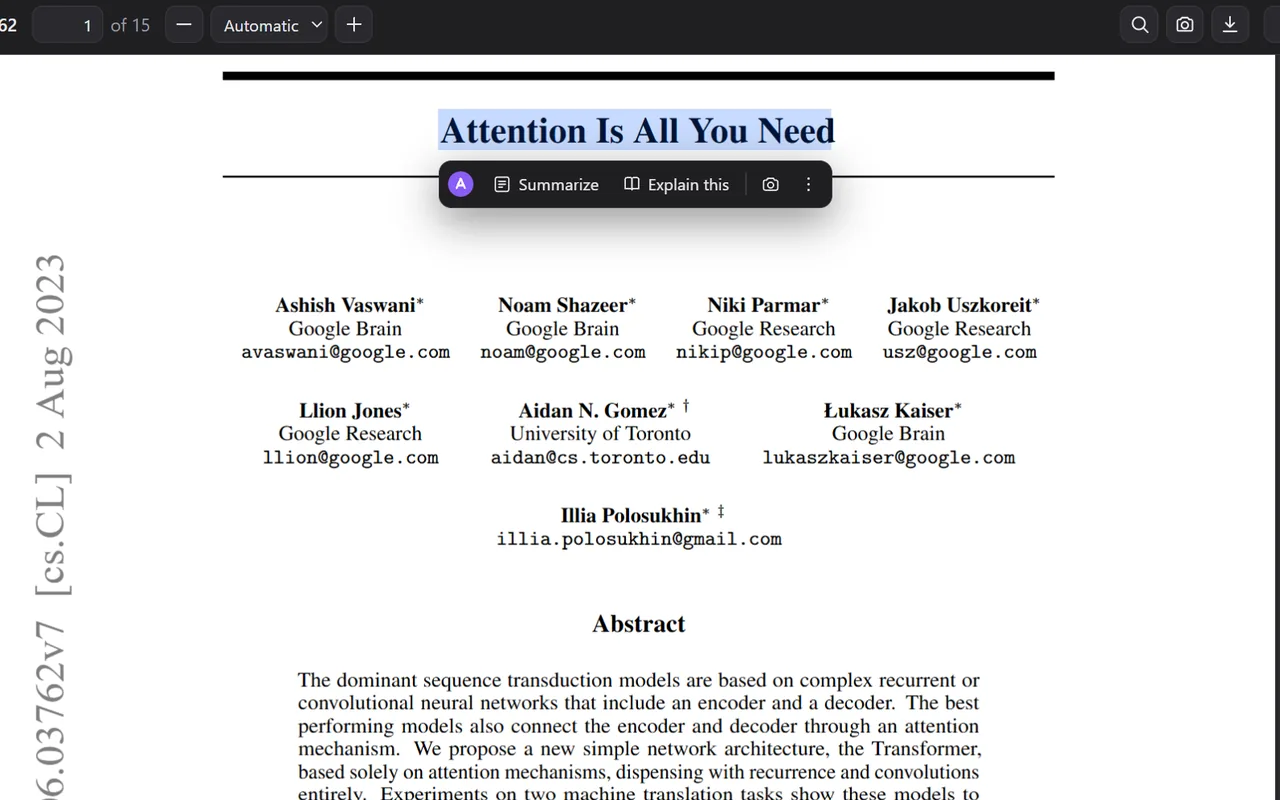
Select a passage. Choose an action. Stay with the reading.
LESS COPYING. MORE UNDERSTANDING.
A small bar.
A useful next question.
You choose what to ask about. Amanda opens a response beside your selection, with room to ask follow-ups.
Select the confusing part
Highlight a passage on a webpage or in Amanda’s PDF reader. Use the camera tool for a diagram or scanned page.
Choose the help you need
Explain the jargon, summarize the main point, translate a passage, or ask a specific question.
Go one question deeper
Ask “why?”, request an example, or check a step. Compare the explanation with the source as you go.
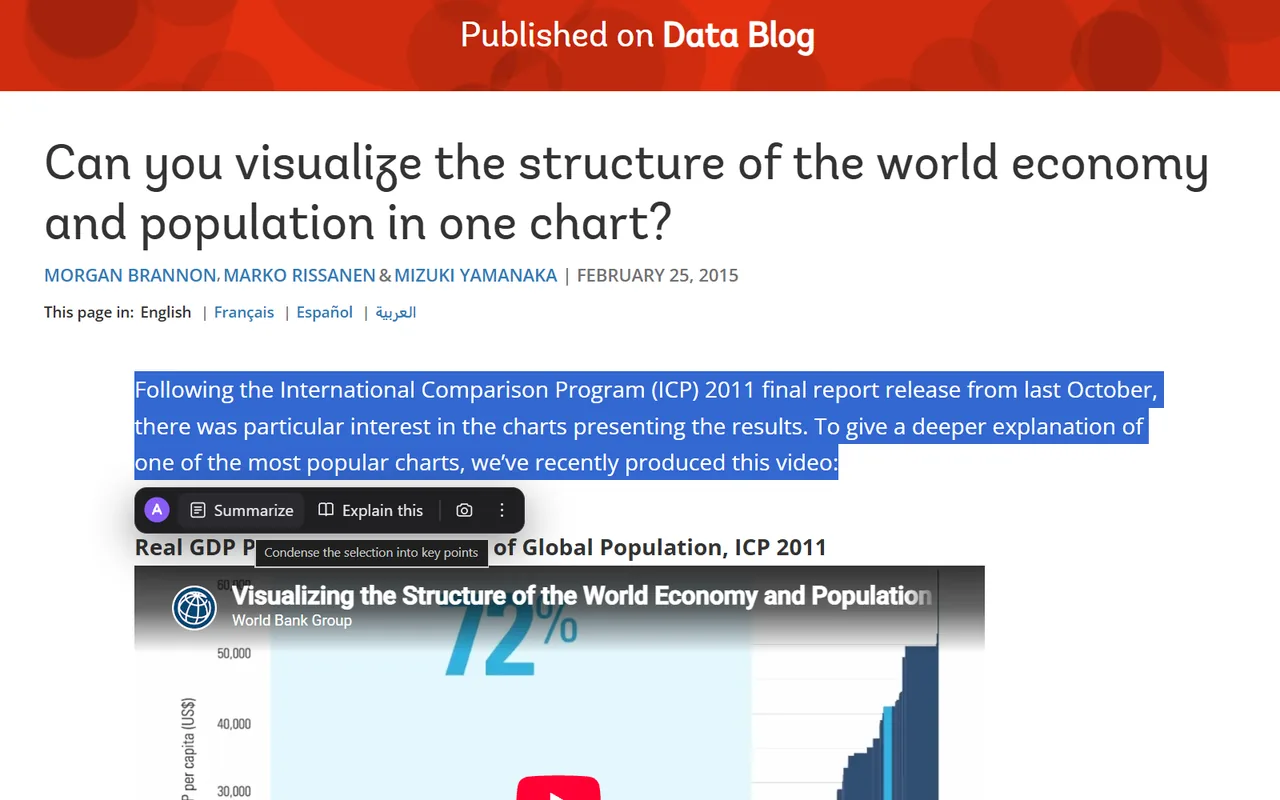
BUILT AROUND YOUR READING
From “what does this mean?” to your next idea.
Work through course readings, journal articles and online textbooks without copying each passage into a separate chat.
Keyboard shortcuts keep it close: Ctrl/⌘ + Shift + K for selected text, Ctrl/⌘ + Shift + U for a screenshot.
Try the PDF walkthrough →A GOOD PLACE TO START
Three ways to get unstuck.
Explain a highlighted paragraph in a PDF
Turn a dense passage into a plain-language explanation.
02 / FIELD GUIDEUnderstand an equation from a screenshot
Ask what each symbol means, then work through an example.
03 / FIELD GUIDESummarize a research-paper passage
Keep the findings and caveats in view, without switching tabs.
YOU CHOOSE THE CONTEXT
Know what you share.
When you choose an action, Amanda sends the selected text or captured region, with the page title and URL, to its backend for an AI response. The PDF file itself is not uploaded to Amanda’s server.
Read the full privacy policy →START WITH THE FREE PLAN
Help at your pace.
A Pro trial starts on install. A limited free plan remains available afterwards, with paid monthly and annual plans for more usage. Daily allowances and monthly usage caps apply.
See current plans, limits & prices →BEFORE YOU BEGIN
A few useful details.
Does it work in Chrome’s built-in PDF viewer?
Amanda opens PDFs in its own reader so selected text can trigger the action bar. You can switch back to Chrome’s viewer, or disable Amanda’s PDF reader in settings. Local files require “Allow access to file URLs” in the extension’s Chrome settings.
What if the page is scanned or the text cannot be selected?
Use the screenshot shortcut and capture the passage, equation or figure. Include enough surrounding labels for context, and check that the image is legible.
Does it work on every page?
Chrome restricts extensions on internal pages and the Chrome Web Store. Site restrictions and some PDF sources can also prevent access. After installation, reload an already-open webpage before selecting text.
Can I rely on every explanation?
AI explanations can miss context or make mistakes. Check quotations, symbols and conclusions against your reading. Use Amanda to develop your understanding and follow your course’s rules for AI assistance.
BACK TO THE READING